Component options
Configure the schedule, levels and permissions for the entire MARTA component.
Component options control MARTA’s global behaviour. Unlike the data covered under the Administration panel, changing an option can affect several users, schedule entries or presentation rules at once.
How do I open Options?
- Go to Components → MARTA.
- Open the Dashboard.
- Select Options from the toolbar.
The button is available only to accounts authorised to configure the component. If it is missing, this does not normally indicate a fault: the account probably does not have administrative permission.
After changing the settings, select Save & Close or Save. Cancel closes the form without saving the current changes.
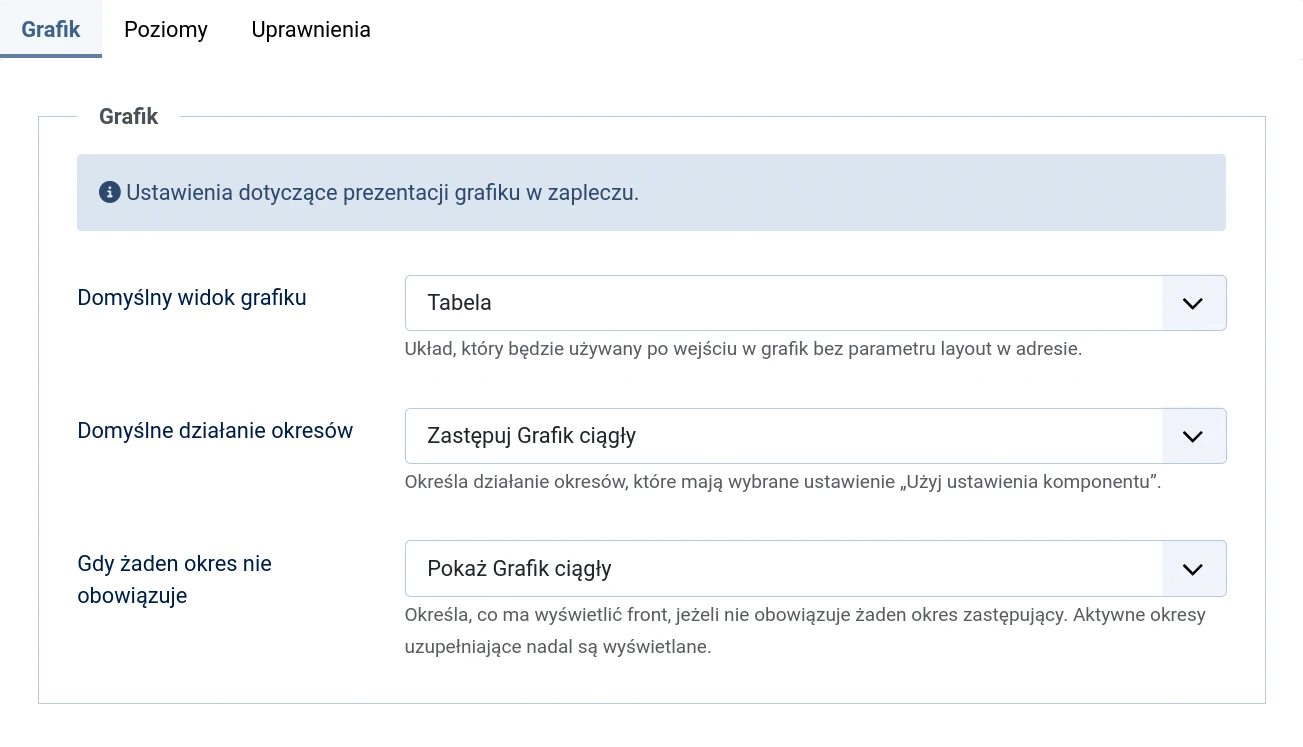
Schedule
The Schedule tab contains settings for the administrator view and schedule period behaviour.
Default schedule view
Selects the layout used when the Schedule is opened in the administrator area without requesting a particular view:
- Table — a list designed for filtering and bulk operations;
- Week — a visual plan from Monday to Sunday.
This option applies to the MARTA administrator area. It does not change the website schedule layout or any saved entries. An operator can still switch views without changing the global configuration.
Default period behaviour
Controls periods whose own form is set to Use component option:
- Replace continuous schedule — the applicable period hides the entire Continuous schedule;
- Supplement continuous schedule — the period entries are added to the Continuous schedule.
A period explicitly set to Replace or Supplement does not depend on this option.
If the organisation needs predictable behaviour that is independent of later configuration changes, select the behaviour explicitly in each important period form.
When no period applies
Controls what the website displays when no replacing period applies:
- Show continuous schedule — the standard weekly plan remains visible;
- Do not show continuous schedule — Continuous schedule entries are hidden.
Applicable supplementary periods are still displayed regardless of this option.
For most installations, Show continuous schedule is the safer setting. Hiding it is appropriate when the website should present activities only through deliberately published periods.
Levels
Use levels enables or disables levels throughout MARTA.
When enabled, levels can be created and assigned to groups. The relevant shortcuts, fields and filters become available in the administrator area, and levels can be presented on the schedule.
Disabling the option:
- hides the Levels shortcut from the Dashboard;
- hides the level field and related group filters;
- hides level labels from website views;
- does not delete saved levels or their assignments.
The existing data becomes available again when the feature is re-enabled. Disable it only if the organisation does not use this classification at all; leaving the level empty for a particular group does not require the global feature to be disabled.
Permissions
The Permissions tab uses Joomla’s standard ACL system. Permissions are assigned to user groups, and an individual account’s effective permissions depend on all its group memberships and inherited configuration.
Available actions include:
- Access Administration Interface — allows users to open the MARTA component;
- Configure ACL & Options — allows users to change Options, including the permissions themselves;
- Create — allows users to add items;
- Delete — allows users to delete items permanently when their relationships do not prevent it;
- Edit — allows users to modify existing items;
- Edit State — allows users to publish, unpublish, archive and bin items.
Some action labels may vary slightly with the Joomla version or language pack.
Recommended separation of access
People maintaining the day-to-day schedule usually need access to the component, Create and Edit, plus Edit State if they are responsible for publication. Configure and permanent deletion permissions should remain restricted to administrators.
Follow the principle of least privilege. Do not add someone to a broad administrative group merely to permit one task in MARTA.
Granting a permission does not bypass data integrity rules. For example, even a user authorised to delete cannot remove a building containing rooms or a group used by schedule entries until the blocking relationships have been removed.
After saving the configuration
After changing an option:
- Reopen the relevant MARTA area and check the result.
- If the change affects schedules or periods, review the currently displayed set and the public website.
- After changing permissions, test an account belonging to the affected user group.
Do not assess the configuration only with a Super User account, as it has broader permissions than normal operators.
What next?
To make the schedule available to website visitors, create and configure a MARTA menu item.