Buildings
Create and manage the buildings to which MARTA rooms are assigned.
A building is the parent item in the MARTA location structure. It groups rooms under a shared name and address and makes it possible to prepare a separate timetable for each location.
Create at least one building before adding rooms. The next step is covered on the Rooms page.
How do I open the Buildings list?
- Sign in to the Joomla administrator area.
- Go to Components → MARTA.
- Select Buildings from the MARTA Dashboard.
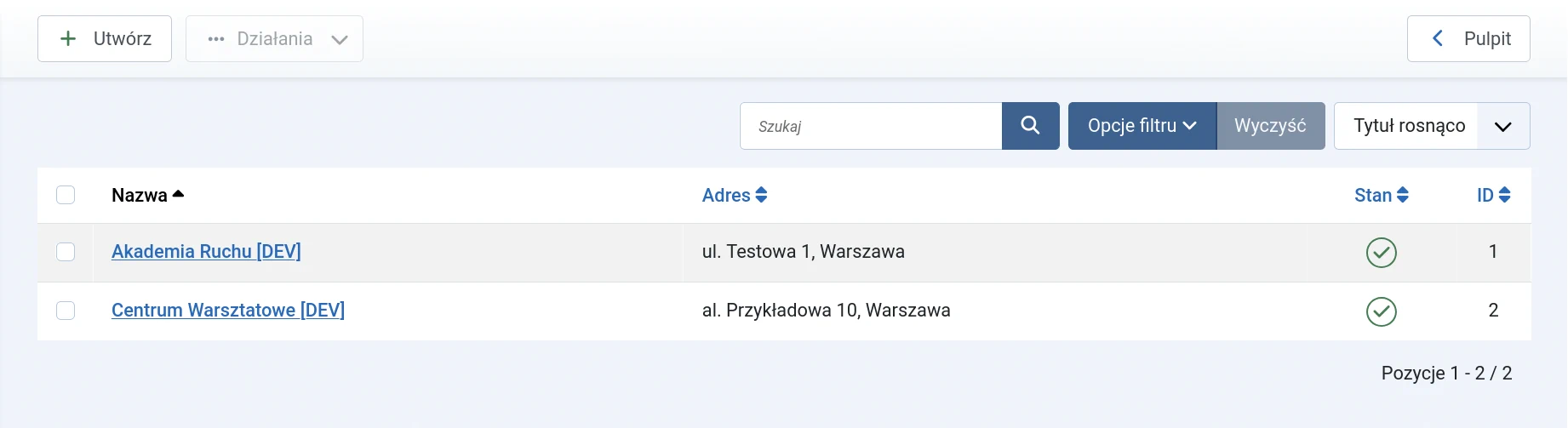
The list shows the name, address, state and identifier of each building. Search checks both the name and address. The state filter can display published, unpublished, archived and binned items.
Adding a building
- Select New from the Buildings list.
- Enter the building name.
- Enter an address if required.
- Select the appropriate state.
- Select Save & Close to return to the list, or Save to remain in the form.
Form fields
- Name — required; the internal name that identifies the building.
- Address — optional; the address can be displayed later in the activity location details.
- Building state — determines whether the building is available in current work and published timetables.
Use short, unambiguous names. If the organisation uses several locations with similar names, add the distinction used by operators, such as the district or street.
Editing a building
Select a building name in the list to edit it. Changing the name or address does not require rooms to be reassigned; existing relationships are retained.
After changing an address, check the public activity details if the website displays location information.
Building states
- Published — the building can be used in active timetables and website views.
- Unpublished — the building is temporarily disabled but remains stored.
- Archived — the building is retained outside the current working list.
- Binned — the building is waiting to be restored or permanently deleted.
The working list displays published and unpublished items by default. Use the state filter to find an archived or binned building.
Deleting a building
A building must be moved to the bin first. You can then select the Binned state in the list and use the permanent deletion command.
If a building only needs to be disabled temporarily, change its state to Unpublished instead of deleting it.
What next?
After creating a building, continue to Rooms and add the spaces in which activities will take place.