Schedule periods
Temporarily replace or supplement the Continuous schedule.
A schedule period stores a separate set of weekly entries that applies within a date range or for as long as it is manually published. It can replace the Continuous schedule or supplement it with additional activities.
A period covers entries across all buildings. It is not assigned to one building, room or weekday.
How do I open Schedule periods?
- Go to Components → MARTA.
- Select Schedule periods from the MARTA Dashboard.
The list shows the name, effective behaviour, applicable dates, priority, number of entries, time status, publication state and identifier. Selecting the entry count opens the Schedule filtered to that period.
The time status can show that a period is current, scheduled, ended, manually active or still an inactive draft.
Recommended workflow
The safest approach is to prepare a period without allowing it to affect the website immediately:
- Complete the standard Continuous schedule first.
- Create the period with the state set to Unpublished.
- Start without entries, or copy entries from the Continuous schedule or another period.
- Open the period entries and adjust their groups, rooms, weekdays and times.
- Review the week view and any conflicts.
- Publish the period only after checking it.
Copied entries become an independent copy. Later changes to the source schedule are not synchronised with the period, or vice versa.
Creating a period
- Select New from the Schedule periods list.
- Enter the internal name.
- Select the activation mode.
- For automatic activation, enter the start and end dates.
- Select the period behaviour and set its priority.
- Add an internal note and public period name if required.
- Select the source for the initial entries.
- Leave the state as Unpublished if the entries still need to be checked.
- Select Save & Close or Save.
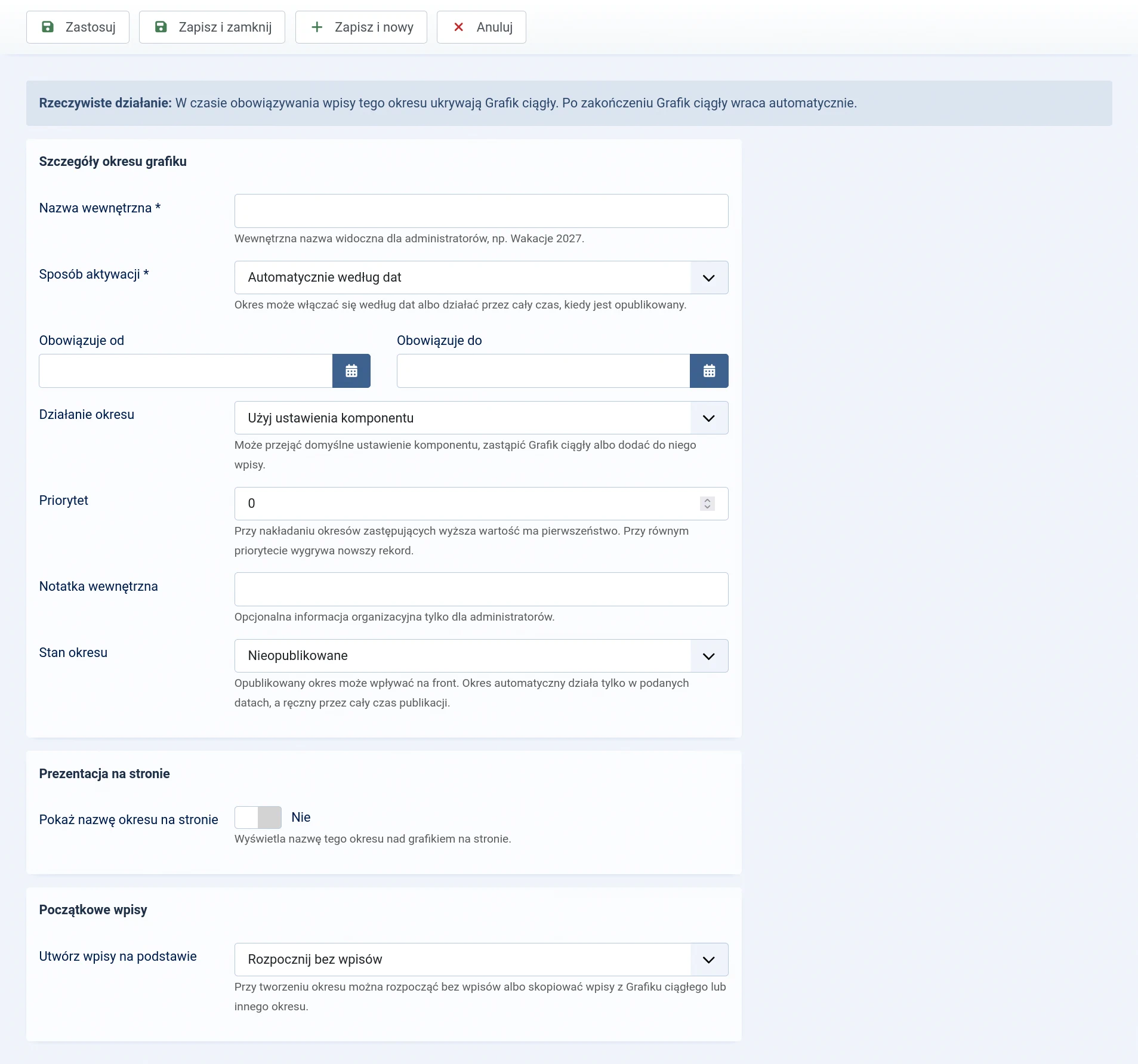
Activation mode
- Automatically by date — a published period applies from Applies from to Applies to, including both dates. Both dates are required.
- Manually — applies while published — dates do not control the period. It begins affecting the schedule when published and stops when unpublished, archived or moved to the bin.
Use automatic activation for planned changes. Manual mode is suitable when there is no fixed end date, but someone must remember to disable the period later.
Period behaviour
- Replace continuous schedule — the period entries hide the entire standard plan while the period applies. The Continuous schedule returns automatically afterwards.
- Supplement continuous schedule — the period entries are displayed alongside the standard plan. This is suitable for adding individual activities, but can cause room conflicts.
- Use component option — the period inherits the behaviour configured globally under Options → Schedule.
Priority and overlapping periods
If several replacing periods apply at the same time, MARTA selects the period with the highest priority. If priorities are equal, the newer record takes precedence.
Active supplementary periods are added to the selected replacing period or, when there is no replacement, to the Continuous schedule. Priority does not disable supplementary periods.
MARTA warns when overlapping periods are published and when their entries may occupy the same room at the same time. Publication is possible after explicit confirmation, so always check the dates, behaviour and priority.
Initial entries
Create entries from is available only when the period is first created. You can:
- start without entries;
- copy the Continuous schedule;
- copy entries from another available period.
For a replacing period, it is often convenient to copy the Continuous schedule and then remove or change the exceptions. For a supplementary period, it is usually safer to start without entries to avoid duplicating the entire standard plan.
Creating a published period with copied entries may affect the website immediately. MARTA therefore requires additional confirmation. The recommended approach is to create the copy as unpublished and review it before publication.
Name and website presentation
- Internal name — required and visible to administrators, for example ‘Summer 2027’.
- Internal note — optional organisational information that is not shown to website users.
- Show period name on site — displays a name above the website schedule.
- Public name — an optional website-facing name. If it is empty, the internal name is used.
If the internal name contains working information, do not display it publicly without setting an appropriate public name.
Global period settings
An administrator with the appropriate permissions can open Component options → Schedule and configure:
- the default behaviour for periods using Use component option;
- what the website displays when no replacing period applies — either the Continuous schedule or no Continuous schedule entries.
Applicable supplementary periods can still be displayed even when the Continuous schedule is hidden because no replacing period applies.
Period states and deletion
- Published — an automatic period can apply within its dates, while a manual period applies for as long as it remains published.
- Unpublished — the period and its entries remain as a draft but do not affect the website.
- Archived — the period is retained outside the current list and does not apply.
- Binned — the period is waiting to be restored or permanently deleted.
The period must first be moved to the bin. It cannot be permanently deleted while it contains schedule entries. Remove those entries first or edit them and move them to the Continuous schedule or another period.