Menu items
Publish a Day schedule or Week schedule through a Joomla website menu.
A menu item connects a MARTA view to the public area of the Joomla website. It controls the building, displayed weekdays and rooms, and the details available when a visitor selects an activity.
Configuring a menu item does not create a separate schedule or copy its entries. The view automatically uses the current Continuous schedule and schedule periods, according to their states and applicable dates.
Available menu item types
MARTA currently provides two types:
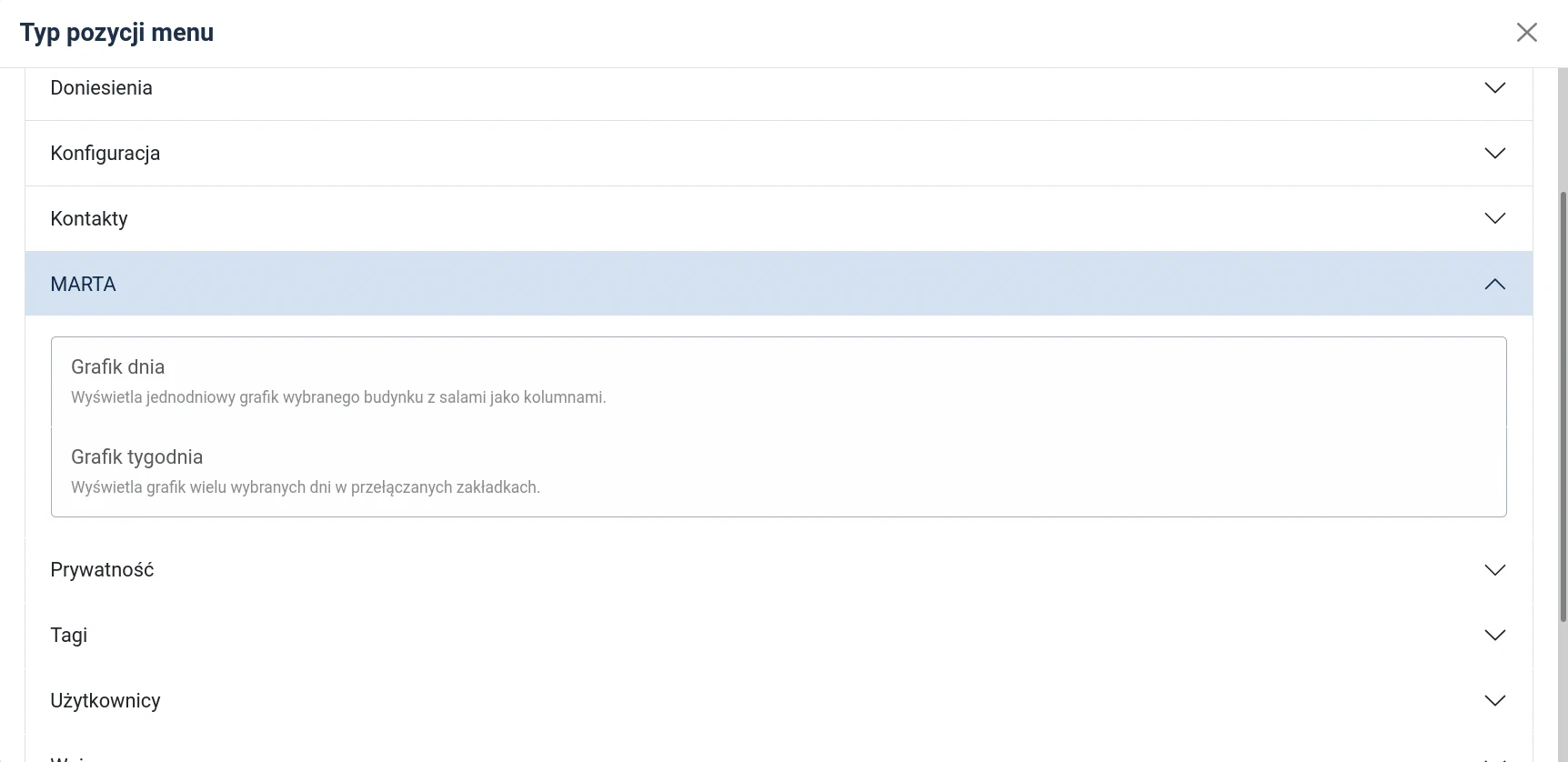
- Day schedule — displays one selected weekday for one building, with rooms as columns;
- Week schedule — displays selected weekdays for one building in switchable tabs or a compact list.
For most standard installations, Week schedule is the better starting point. Visitors receive one address for the whole plan, and the administrator does not need to maintain a separate item for each day. Day schedule is useful when a menu or page should lead directly to a particular weekday.
Creating a menu item
- Open Menus in the Joomla administrator area.
- Select the menu in which the link should appear.
- Select New.
- Enter the Menu Title.
- Use Select beside Menu Item Type.
- Expand MARTA.
- Select Day schedule or Week schedule.
- Complete the settings described below.
- Set the state to Published and select Save & Close.
- Open the item on the website and test it on desktop and mobile screens.
The account must be authorised to manage the relevant Joomla menu. Access to the MARTA component alone does not automatically grant permission to create menu items.
Basic settings
Building
Both types require a published building. One menu item displays the schedule for one building only.
To publish schedules for several buildings, create a separate menu item for each one. They can be placed below a common parent, for example Schedule → Central site and Schedule → Branch.
After changing the building, select Apply or Save. MARTA can then safely load the active rooms assigned to the new building under Room selection.
Weekday in Day schedule
Day schedule requires one weekday from Monday to Sunday. To publish several separate daily views, create an individual menu item for each required weekday.
Week schedule does not have this field in its basic settings. Its range is configured separately under Weekday selection.
Layout and website information
The following options are shared by both menu item types.
Schedule layout
- Timeline — preserves the actual gaps between activities. Rooms are presented as columns in Day schedule and in each Week schedule tab.
- Compact list (without empty hours) — places activities consecutively without unused time slots. Columns represent rooms in Day schedule and selected weekdays in Week schedule.
The timeline represents room occupancy and breaks more clearly, but may require horizontal scrolling on small screens. The compact list uses less space and is often easier to scan quickly on a phone.
Presentation options
- Room colors — enables colours in room headings and room indicators in the compact list.
- Building name — displays the selected building name above the schedule.
- Class times in cards — displays the time range with a clock icon.
- Show class details — allows visitors to select a card and open a details window.
When Show class details is enabled, the following sections can be made available separately:
- Class type description — the class type name, image and description;
- Level — the name and description of the level assigned to the group;
- Instructors — photographs and information for published instructors;
- Location — the building, address and room.
Disabling Show class details disables the entire details window regardless of the individual section settings. Enabling a section does not create missing content: it is shown only when the entry and related items contain suitable published information.
Room selection
Room selection can limit the view within the chosen building:
- All rooms — displays every active room in the building;
- Only selected rooms — displays only the selected rooms;
- All except selected rooms — displays every active room except those selected.
All rooms is dynamic: a room added and published later appears automatically. With Only selected rooms, a new room must be added deliberately to the menu item configuration. All except selected rooms automatically includes new rooms unless they are subsequently excluded.
Weekday selection in Week schedule
Weekday selection is available only for Week schedule:
- All weekdays — includes Monday to Sunday;
- Only selected weekdays — displays only the selected days;
- All except selected weekdays — omits the selected days.
Preset buttons can select all days, clear the selection, or apply Mon–Fri, Sat–Sun or Fri–Sun.
When using Only selected weekdays, select at least one day. An item that includes no weekdays is not configured correctly and cannot display the schedule.
Which activities are displayed?
The menu item displays only entries belonging to the set that applies on the current date: the Continuous schedule, the replacing period selected automatically by MARTA and any supplementary periods. A particular period is not selected in the menu item configuration.
The schedule entry, group, room and building must all be published. An unpublished class type, level or instructor does not necessarily hide the activity card itself, but its information is unavailable in the corresponding details section.
Standard Joomla settings
In addition to the MARTA parameters, check the standard menu item fields:
- Status — the item must be published before it is available in the menu;
- Parent Item — controls its location within the menu structure;
- Access — restricts visibility to the selected viewing access level;
- Language — relevant on multilingual websites;
- Alias — affects the page address and can normally be generated automatically.
On a multilingual website, create a separate item for each language and configure Joomla associations. Translating the menu title does not alter MARTA data, but provides the correct navigation and language-specific addresses.
Checking the saved item
After publishing the item, check:
- That it displays the intended building, weekdays and rooms.
- That the expected Continuous schedule or schedule period applies.
- That the layout remains readable on wide and narrow screens.
- That activity cards open only the intended details sections.
- That a visitor with a normal access level can open the page.
If the view is empty, first check the building, weekday and room configuration, then the publication states and currently applicable schedule.