Class types
Create reusable class descriptions that can be assigned to groups and presented in the timetable.
A class type describes an activity offered by the organisation, such as classical ballet, English or robotics. It contains a shared name, description and image that can be used by several groups.
A class type is not a group or timetable entry. It identifies what is taught, while a group represents particular participants and can later be placed on the timetable.
How do I open the Class types list?
- Sign in to the Joomla administrator area.
- Go to Components → MARTA.
- Select Class types in the settings area of the MARTA Dashboard.
You can also open the list from the Groups view by selecting Class types.
The list shows the image, name, shortened description, state and identifier. Search checks the name and description, while the state filter can display unpublished, archived and binned items.
Creating a class type
- Select New from the Class types list.
- Enter the class name.
- Add a description if required.
- Select an image from the Joomla Media Manager if required.
- Select the appropriate state.
- Select Save & Close or Save.
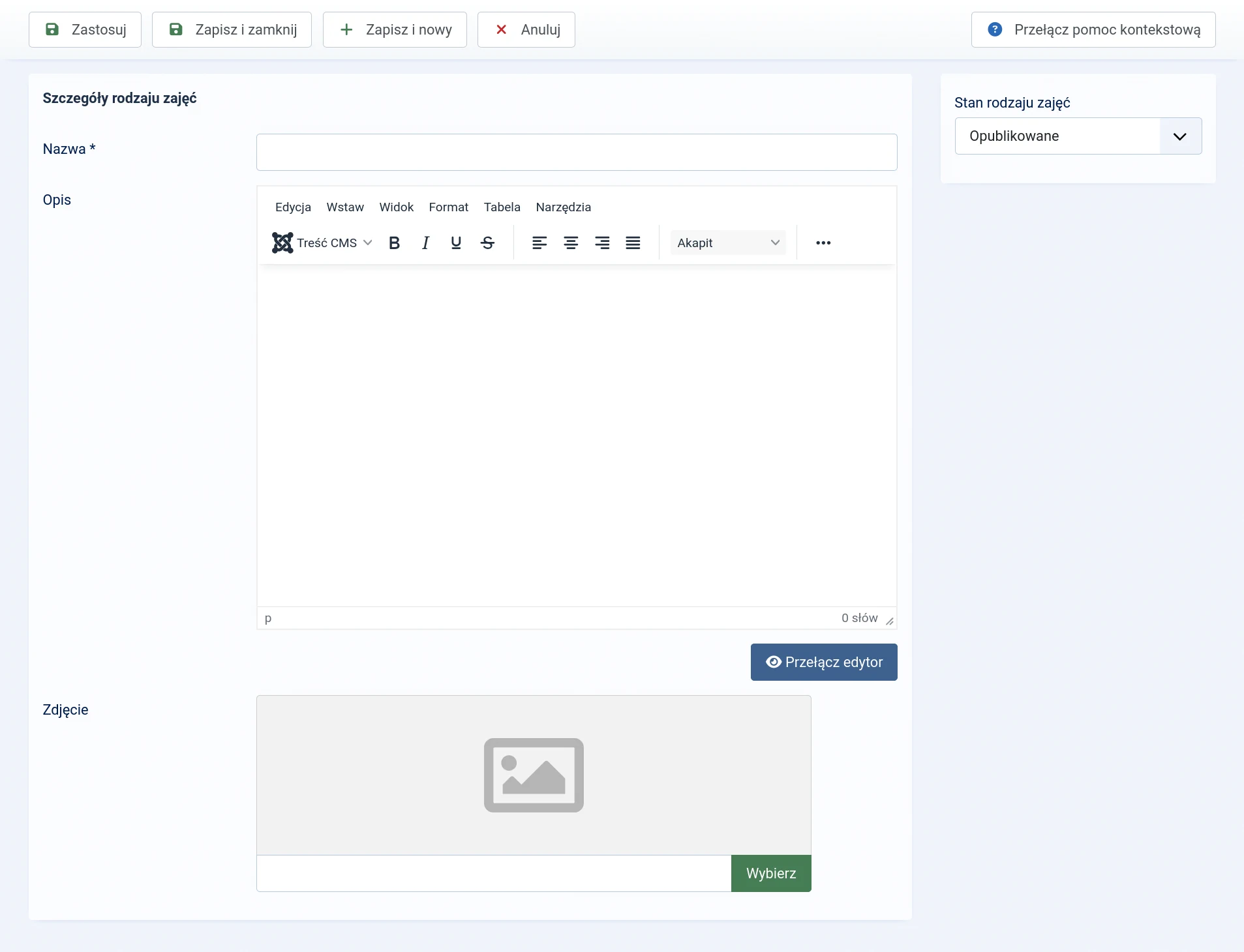
Form fields
- Name — required; the reusable activity name, up to 255 characters.
- Description — optional, with text formatting available.
- Image — an optional image selected from the Joomla Media Manager.
- Class type state — determines whether the class type can be used and presented publicly.
The name should describe the activity itself, not a particular group, instructor or time. Use ‘Classical ballet’ rather than ‘Ballet — Tuesday 17:00’; the day and time belong to the timetable.
Description and image
The description can provide more information about the activity, and the image can represent it in the public timetable details. These details do not need to be repeated in every group that uses the class type.
Whether the description and image are visible on the website depends on the timetable view configuration. The site administrator can disable activity details or display only selected parts.
Use images prepared for the web. An unnecessarily large file can slow down the activity details when they are opened.
Assigning class types to groups
A class type is selected in the group or class form. A group can have no more than one class type, but the same class type can be used by several groups.
For example, ‘Classical ballet’ can be assigned to ‘Ballet ages 6–8’ and ‘Adult ballet’. The shared description and image are then maintained in one place.
Class type states
- Published — the class type can be assigned to groups and presented on the website.
- Unpublished — it remains stored with its existing assignments but is not available to additional groups or in public details.
- Archived — it is retained outside the current list and is not available for new assignments.
- Binned — it is waiting to be restored or permanently deleted.
If the activity may return in the future, unpublish or archive it instead of deleting it.
Deleting a class type
A class type must first be moved to the bin. Permanent deletion is available only after displaying binned items.
What next?
If groups need an additional age or proficiency classification, continue to Levels.