Rooms
Add rooms, assign them to buildings and manage their availability.
A room is a specific space in which activities take place. Every room must belong to one building, so create the building structure before adding rooms.
A timetable entry links a group to a room, day of the week and time range. Clear room names and correct building assignments therefore have a direct effect on timetable clarity.
How do I open the Rooms list?
- Sign in to the Joomla administrator area.
- Go to Components → MARTA.
- Select Rooms from the MARTA Dashboard.
The list shows the room name or number, assigned colour, building, state and identifier. You can search by room or building name and restrict the list to a selected building and state.
Adding a room
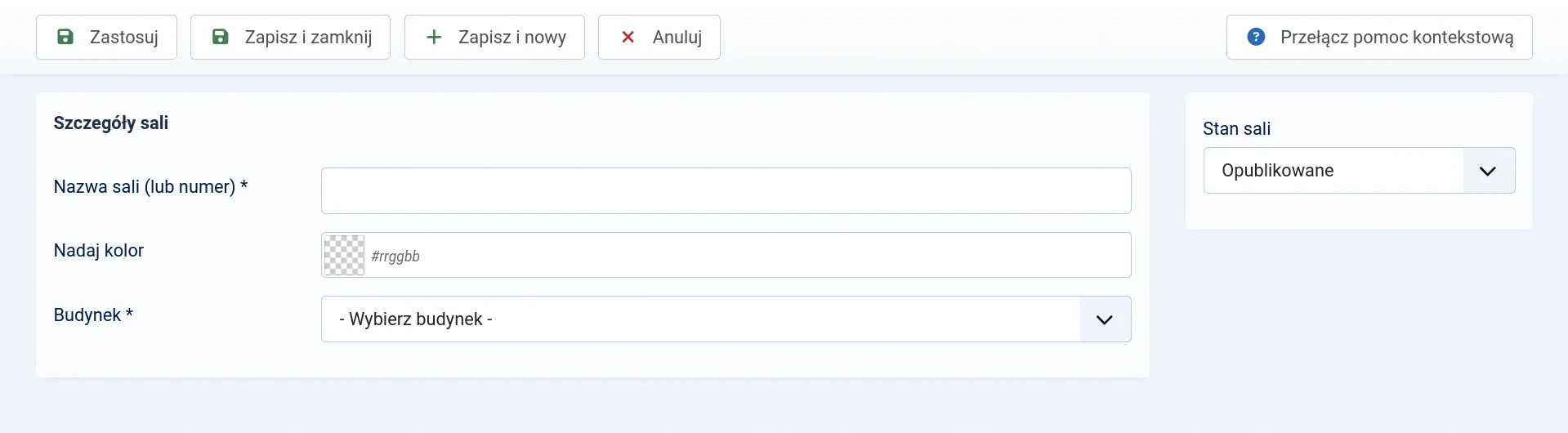
- Select New from the Rooms list.
- Enter the room name or number.
- Select a colour if required.
- Select the building in which the room is located.
- Select the appropriate state.
- Select Save & Close or Save.
Form fields
- Room name (or number) — required; the name displayed in lists and timetables.
- Assign a colour — optional; the colour can distinguish the room in timetable headings and markers.
- Building — required; identifies the room’s location.
- Room state — controls the room’s availability in current work and timetables.
Names should be unambiguous within a building. If the organisation uses room numbers, apply them consistently, for example ‘Room 101’ or ‘Studio A’.
Room colour
A colour makes rooms easier to recognise in timetable views. Whether it is displayed depends on the configuration of the particular website view or module.
The colour does not change room availability or conflict detection. It is solely a presentation feature. Leave the field empty if a colour is not needed.
Editing and moving a room
Select a room name in the list to edit it. You can change its name, colour, building and state.
Room states
- Published — the room is available when creating and displaying the active timetable.
- Unpublished — the room remains stored but is temporarily disabled.
- Archived — the room is retained outside the current working list.
- Binned — the room is waiting to be restored or permanently deleted.
Change the state filter above the list to find an archived or binned room.
Deleting a room
A room must be moved to the bin first. Permanent deletion is available only after displaying binned items.
If a room is unavailable only temporarily, it is safer to change its state to Unpublished. This retains its data and earlier relationships.
What next?
After preparing the locations, continue to Class types and define the activities offered by the organisation.
To add a new location or change the room’s parent information, return to Buildings.