Groups
Create groups and classes for use in schedule entries.
A group represents the participants in an activity placed on the schedule. It can describe a school class, a regular activity group or another organisational unit.
A group combines information prepared earlier: a class type, an optional level and one or more instructors. The schedule entry then assigns that group to a particular room, weekday and time.
How do I open the Groups list?
- Go to Components → MARTA.
- Select Groups (classes) from the MARTA Dashboard.
The list shows the group name, class type, instructors, colour, optional level, state and identifier. Search checks the group name, class type, instructor’s first or last name, and level. You can also filter by class type, level, instructor and state. The instructor filter can find groups with no assigned instructor.
Creating a group
- Select New from the Groups list.
- Enter the group or class name.
- Select a class type if required.
- Add the instructors and arrange their order.
- Select a colour and level if required.
- Select the appropriate state.
- Select Save & Close or Save.
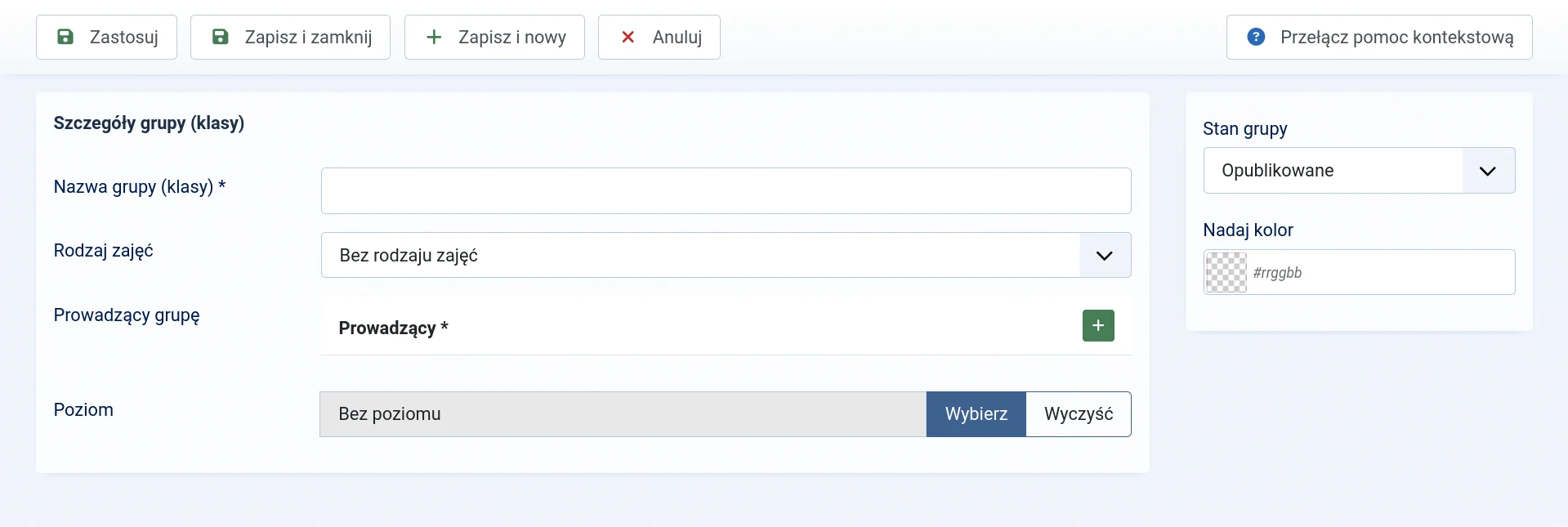
Form fields
- Group (class) name — the only required field; a recognisable name used in the administrator area and schedule.
- Class type — an optional classification of the activity. A group can have no more than one class type.
- Group instructors — an optional list of instructors. You can add, remove and rearrange its entries.
- Assign colour — an optional colour that helps identify the group in lists and on the schedule.
- Level — an optional age, proficiency or other classification label. This field is visible only when levels are enabled.
- Group state — determines whether the group is available for new schedule entries.
The class type, level and instructors are not required to save a group. However, complete them before publishing the schedule if their details should be presented to website users.
Group name and colour
The name should distinguish the group clearly from the others. If several groups share the same class type, use names recognisable to operators and visitors, such as ‘Acrobatics — beginners’ or ‘Group A’.
The colour is a visual aid. It identifies the group in the administrator area and weekly schedule view, but does not affect ordering, availability or conflict detection.
Group instructors
Several people can be assigned to one group. Their order is significant:
- the first person is the lead instructor;
- the remaining people are co-instructors.
The same person cannot be assigned to a single group more than once. One person can, however, teach several different groups.
Group states
- Published — the group can be selected when creating a new schedule entry.
- Unpublished — the group remains stored but is temporarily disabled and unavailable for new entries.
- Archived — the group is retained outside the current list.
- Binned — the group is waiting to be restored or permanently deleted.
Unpublishing a group does not remove its existing schedule entries, but hides them from the website while the group remains inactive. Before publishing the group again, check that its previous entries are still current.
Deleting a group
The group must first be moved to the bin. Select the Binned state in the list to access permanent deletion.
If the group may still be required for historical reference or future use, it is safer to unpublish or archive it.
What next?
Once the groups are ready, add them to the Schedule and assign a room, weekday and time to each entry.